
Over the last two weeks, I have started setting up my own domain and websites/urls for different projects and uses. Here is everything I discovered.
Buying a domain
There are hundreds if not thousands for offers for domains out there. Some of them include email, hosting of the website using something like wordpress, and others include fees for random stuff. I have come to realize that most of these are targeted to people that do not have the technical expertise to set up things themselves. Plans may be as high as hundreds of dollars per month or as cheap as five dollars. But all of these are still absurdly expensive in my opinion.
Of course, if you do not have the technical expertise, you have no option. But if you do, this is how I setup things myself.
First, I bought my domain from cloudflare for $10/year. It includes the domain plus every feature that cloudflare offers with their extremelly generous free plan.
What I have built
Only with the domain, you instantly get access to setting up DNS Records (using your domain to point to things). This includes anything that is before your domain as a prefix (sth.joelgarciamartin.com) or after (joelgarciamartin.com/sth). With this in mind, this is my current setup:
- joelgarciamartin.com -> Main website. Hosted in GitHub Pages.
- beta.joelgarciamartin.com -> Development website. Hosted in Cloudflare Pages.
- joelgarciamartin.com/blog -> Blog, hosted in Cloudflare Pages.
- link.joelgarciamartin.com -> Simple redirect links. Hosted in Cloudlfare Pages.
- go.joelgarciamartin.com / rsvp.joelgarciamartin.com -> Redirect page with tracking. Hosted using dub.co.
- local.joelgarciamartin.com -> Tunnel to my computer for local development. Requires authentication using Cloudflare Auth.
- My own email addresses: me@joelgarciamartin.com & help@joelgarciamartin.com -> Using iCloud as the inbox with their custom domain feature.
- cal.joelgarciamartin.com -> Access to my calendar for scheduling. Used Notion Calendar and a redirect rule.
- hack.joelgarciamartin.com -> Access to an app we plan to use for a hackathon. Requires username and password and the website is hosted using Google Cloud.
- files.joelgarciamartin.com -> Access to a cloud file server hosted using Cloudflare’s R2 Object Storage. Requires authentication using Cloudflare Auth.
In the next sections, I’ll discuss the setting up of these URLs and what I used.
DNS Records
Probably the most annoying/dauting feature in hosting your own domain is using DNS. Yes, it is incredibly powerful, but at the same time, it sucks.
DNS (Domain Name System) is what the internet is based on to know where each website is. If you are trying to access “google.com”, your computer does not know where it is, so it asks your router. If your router doesn’t know either, then it asks your ISP, if your ISP doesn’t know, then it asks the Root DNS Servers.
What these will do first, is check the termination of the domain. So they will say: “I don’t know where google.com is, but I do know that this server handles .com”. Basically it will tell you to go knock another door. That other server will say “oh yeah, google.com is this server”.
Finally, you will have an IP right? Well, not quite yet, you have now hit Google’s DNS Servers. Google wants to distribute traffic equally along it’s network. So if you are in the UK, it will tell you to use a specific server close to you, plus it will tell different computers to use different servers to distribute the load.
A DNS request looks like this:
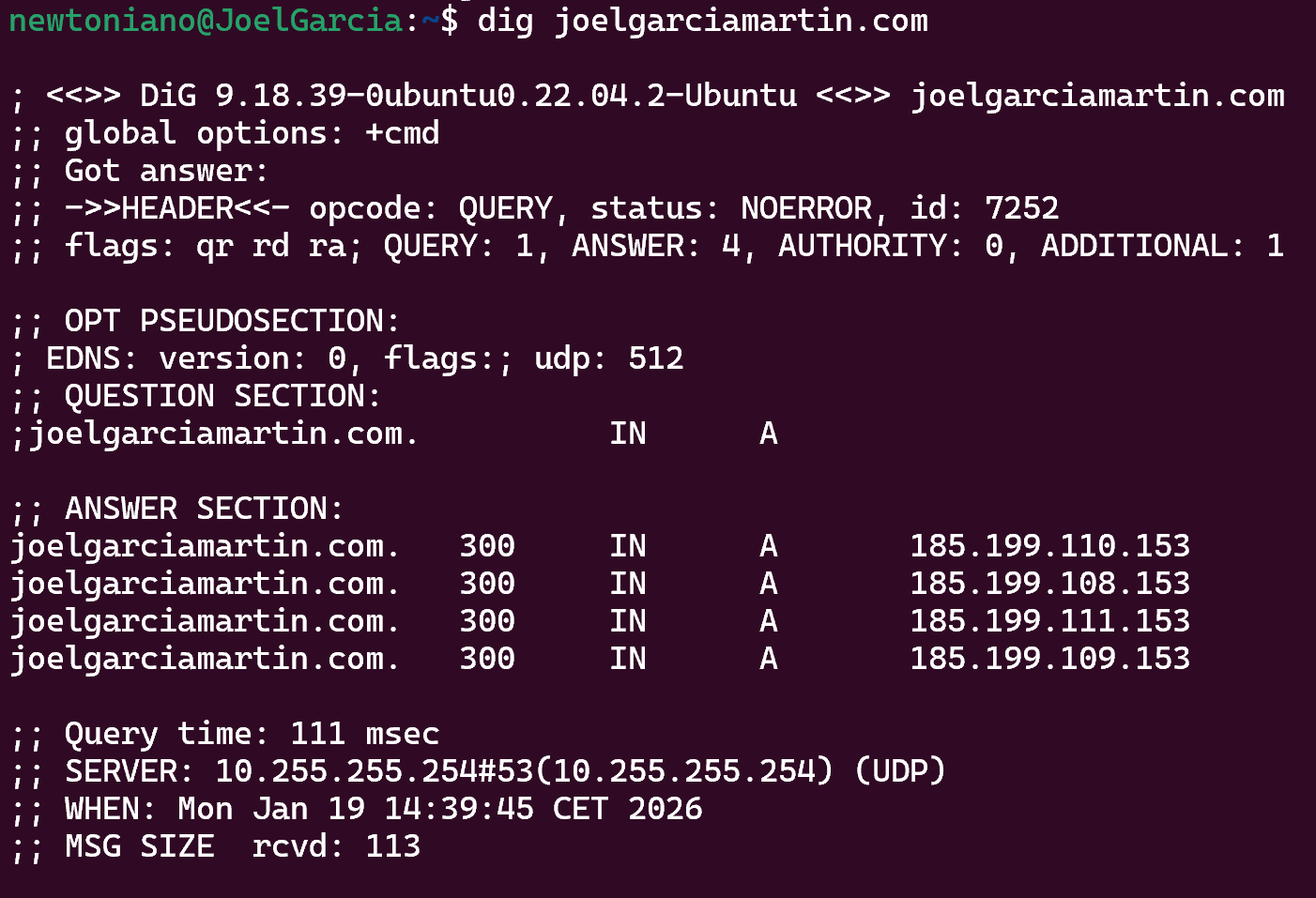
Here I asked my local ISP for where joelgarciamartin.com is located. My ISP handled the interaction with other servers to figure out the IP. In this case, 185.199.109.153. If we look closely at the answer section, we can see it “cached” the answer for 300 seconds (300 before the “IN”). So it does not have to ask every time to the DNS servers what IP to use. Basically, your computer, router and ISP will use that IP for the next 300 seconds.
This is why sometimes something stops working for 5 minutes, if 185.199.109.153 stops working, your computer will still try and access that IP for the next 5 minutes. But once that time expires, your computer will ask again for the IP and will get a different one which works, solving the issue.
Setting up a DNS Record
Having said this, DNS servers need to know where to point (i.e. when a request comes for joelgarciamartin.com, it needs to know what to say). We do this by using DNS Records. These have multiple propieties:
Type: What type of Record we will use. This is because you could point at a specific house (an IP) or at another URL (something like dns.example.com) or others. Types of DNS
Name: What prefix you want to use for this record. For example, test.joelgarciamartin.com . That “test” is defined here.
Target: Where to point. This could be an IPv4 if we used type A or another domain if used CNAME.
TTL: For how long should websites “cache” your target. If you set this to 24h and the server goes down or the target changes, you may have to wait up to 24h for your domain to work again. Usual times differ, you could set this to as low as 1min and up to 24h.
Proxy Status: A Cloudflare Only setting. This can be used to “protect” the real target. When someone tries to reach the URL, cloudflare will stand in the middle and act as a middleman, protecting the user of seeing the actual IP of the target. Useful for security reasons.
An example of a DNS Record, is the one I use for my GitHub Pages hosting (joelgarciamartin.com):

I am basically redirecting people to “newtoniano20.github.io”. The URL will always show as joelgarciamartin.com, but the underlying IP for the URL is the same as newtoniano20.github.io . Basically, when your computer asks for the IP, clouflare will say “Go ask newtoniano20.github.io”, and will use the IP for that URL for mine. I disabled Proxy as for HTTPS and GitHub Pages, the Proxy messes up the connection.
Hosting
GitHub Pages
Probably the easiest to setup, the only thing you need is a github account, a static webserver and redirecting traffic to Github Pages.
I know it might be dauting if you have never done anything before in HTML/CSS. But GitHub does have a fairly simple tutorial for setting this up: Tutorial
Next, going to Settings > Pages > Custom Domain. You can use your custom URL to access that site. You will need to setup the DNS Records to point to that website though.